You've finished work, opened the course invitation, and now the deadline is close. The login page asks for an email, password, and perhaps a verification code. It looks routine, but one wrong course format, misspelled name, or unrecognized provider can leave you with a certificate that the court, Georgia DDS, or your insurer won't accept.
I've walked Georgia drivers through this first login many times. My advice is simple: treat access as a compliance checkpoint, not a technical formality. The goal isn't merely to enter a course. It's to enter the right course, under the right identity, with records that can support the result you need.
Why the Login Page Matters More Than You Think
Georgia drivers often search for a defensive driving course online login before checking whether the course itself is appropriate. That order creates problems. Georgia DDS says Driver Improvement is a six-hour course, and it currently doesn't recognize online Driver Improvement certificates for driver-license or driving-privilege matters. DDS also requires defensive-driving and DUI programs to come from DDS-certified schools. A certificate from an uncertified provider won't satisfy a licensing, reinstatement, or court requirement. Georgia DDS explains the approved-provider and online-certificate rules.
Start with eligibility, not the password field:
- Verify the provider. Check the school in the Georgia DDS directory before registering.
- Confirm the required format. Ask the court, probation officer, attorney, or insurer whether you need a live virtual class, classroom course, or another approved format.
- Read the invitation closely. Look for the session date, time zone, access method, attendance rules, and support contact.
- Match the course purpose. A Driver Improvement course for point reduction isn't the same program as DUI Risk Reduction.
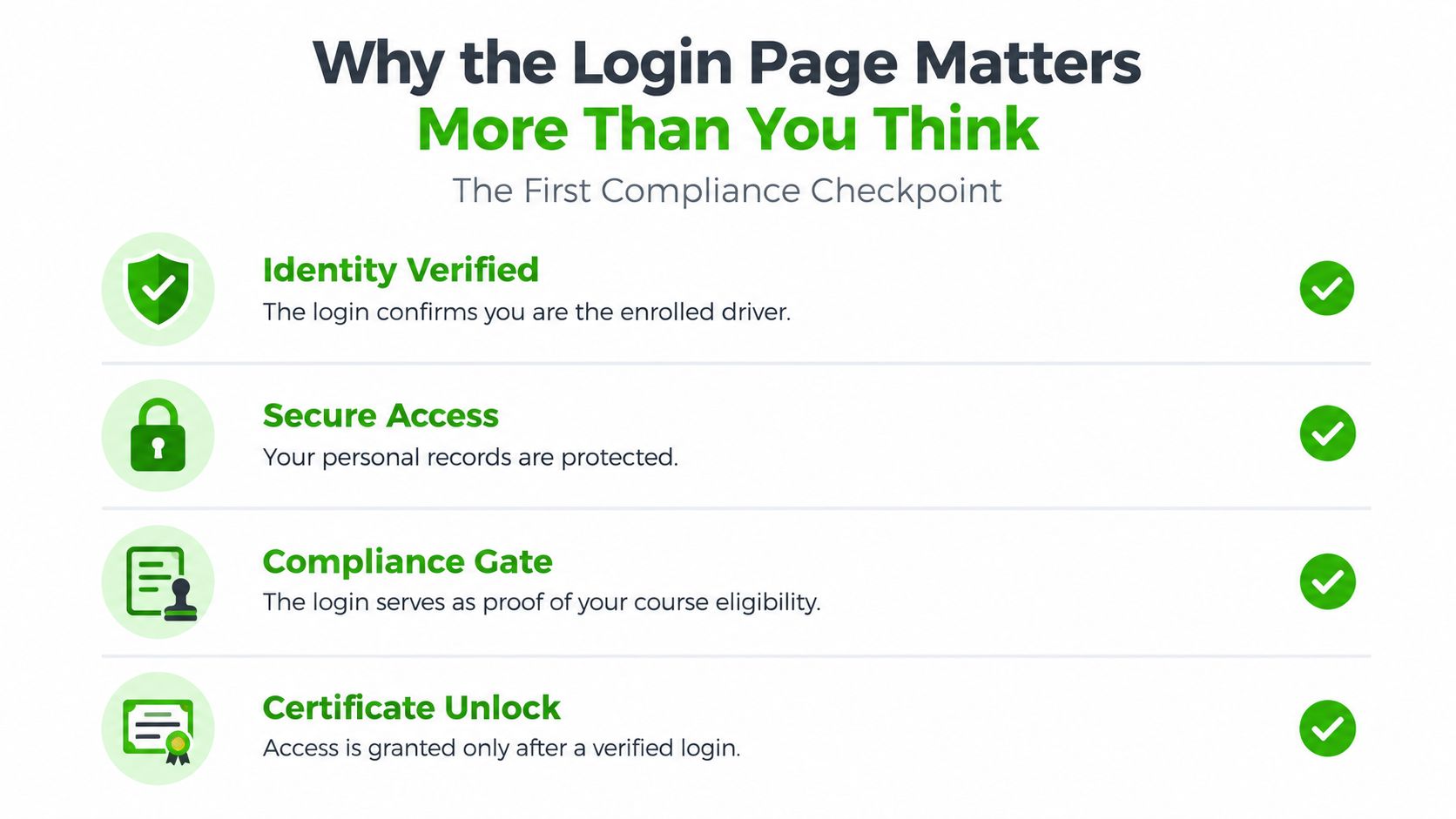
Compliance rule: A working account proves that you can access a portal. It doesn't prove that the course will produce usable credit.
Georgia DDS distinguishes approved course formats, and the consequence is practical. You might complete every lesson successfully and still have to start over if you selected a generic self-paced traffic course when your case required an approved instructor-led program. Review the benefits of defensive driving only after you've identified the requirement you need to satisfy.
The login invitation should also identify the scheduled session when a live class is required. If it doesn't show a date, time zone, or access method, contact the provider before paying or enrolling. Ten minutes of verification is far better than discovering after completion that the certificate can't be used.
Creating Your Course Account the Right Way
Once the format and provider are confirmed, create the account with the same care you'd use for a court document. Your profile becomes the source for attendance records, assessments, and the completion certificate.
Enter the identity details exactly
Use your full legal name as it appears on your driver's license and relevant court paperwork. Don't enter a nickname, shortened middle name, or casual spelling. A certificate under “Mike” can create a preventable problem when the legal record says “Michael.”
A Georgia provider may also request your date of birth, citation or case number, course purpose, email address, and mobile number. Enter each field slowly. A transposed phone digit can block text verification, while a typo in the email address can send the confirmation to an inbox you can't access.
Use an email account you personally check. A shared family inbox is a poor choice because another person may delete the invitation, overlook the reset message, or control the verification code. The same applies to phone numbers. Use a mobile number you'll still have when you attend class and retrieve your certificate.
Build a recoverable account
Choose a unique password that you won't reuse for another student portal. A password manager can create and store one, but make sure you know how to retrieve it before class begins. Don't give the password to a family member, employer, or anyone claiming to be support.
After submitting the form, check the inbox, spam folder, and promotions folder. Add the provider's email address to your contacts if messages are being filtered. Open the confirmation message promptly because invitation and verification links can expire.
If the message doesn't arrive, don't create another account immediately. First, check whether the email address was entered correctly, search for the provider's name, and use the existing-account recovery option. Duplicate registrations split your records and can make support staff unsure which profile contains your enrollment.
Don't reuse an old student account for a new requirement unless the provider specifically tells you to. Previous course records, names, or case details may attach to the wrong enrollment.
Logging In Every Time, Including Lessons Resumed
Use the provider's real website, not a fresh search result every time. After your first successful sign-in, bookmark the verified login page in Chrome, Edge, Safari, or Firefox. Phishing pages often copy familiar branding and ask for credentials, payment information, or verification codes. Check the domain before entering anything, and don't trust a link that arrives unexpectedly by text.
A saved-password prompt can make access easier, but it shouldn't replace your recovery plan. Confirm that the browser is saving credentials only on your private device. Don't save them on a public computer, workplace machine, or shared library terminal.
Self-paced and live virtual courses behave differently. In a self-paced program, look for a dashboard showing completed modules, saved progress, quizzes, and the next unfinished lesson. If you were logged out, return through the dashboard rather than restarting randomly. The course should identify which content has been completed, but you should still record the last module you finished.
For a live virtual course, the lobby isn't necessarily the classroom. Join early enough to test your audio, camera, and identity information. If the class has already started, don't repeatedly click an expired invitation. Return to the provider's portal, check the session status, and contact support if the class is closed or attendance hasn't registered.
Use a repeatable login routine
- Open the bookmark: Avoid unverified search results and old calendar links.
- Check the session: Confirm the date, time zone, and course name before joining.
- Verify the dashboard: Make sure your legal name and enrollment appear correctly.
- Record interruptions: Note disconnects, rejoin times, or missing progress so support can reconcile the record.
Drivers who want broader guidance on securing account access without friction should apply the same principles here: use verified access points, limit credential sharing, and make recovery possible before an emergency. Georgia DUI Schools describes its defensive driving course video format as an option for drivers completing online coursework, but the format still has to match the requirement attached to your case.
Password Reset, Account Recovery, and Two-Factor Codes
It usually happens at the worst time. You sit down to finish a lesson or pull a certificate, the password fails, the reset email does not show up, and now your completion record is at risk. Treat account recovery like a compliance problem, not a minor tech delay. If you cannot get back into the same enrolled account, the provider may not be able to match your identity, progress, or certificate request cleanly.
Start with the normal reset link and slow down. Enter the exact email used at registration, send one reset request, then look in spam, promotions, and junk before you do anything else. If the message expires, request a fresh one. Do not keep opening the old link, and do not build a second profile while you wait. Duplicate accounts are one of the fastest ways to create name mismatches and missed credit.
If the account locks after several failed attempts, stop guessing. Support can usually clear the lockout faster when you give them the legal name on the enrollment, the registered email address, and the reason you took the course. That context matters because the recovery path for court, DDS, and insurance use is not always handled the same way inside a provider system.
Follow the right recovery path
Unavailable email: Tell support you no longer control the registered inbox. Expect an identity check. Use the provider's secure process only, and do not send a full driver's license image or sensitive records through an unsecured channel.
Old phone or shared device: Two-factor failure is common when codes still go to a previous number or a family device. Ask support to explain the approved verification steps before they change contact details. Never share or forward a one-time code unless you have confirmed the account owner and the request is legitimate.
Duplicate account: Stop signing into both profiles. Give support every registration email you used, your legal name, and the course purpose so they can identify the valid enrollment and close or merge the other account where allowed.
Certificate retrieval: Old completion records are not always available forever, and replacement documents often have to come from the original provider. If you are trying to recover a past certificate, check the DDS guidance cited earlier before assuming the record can still be pulled.
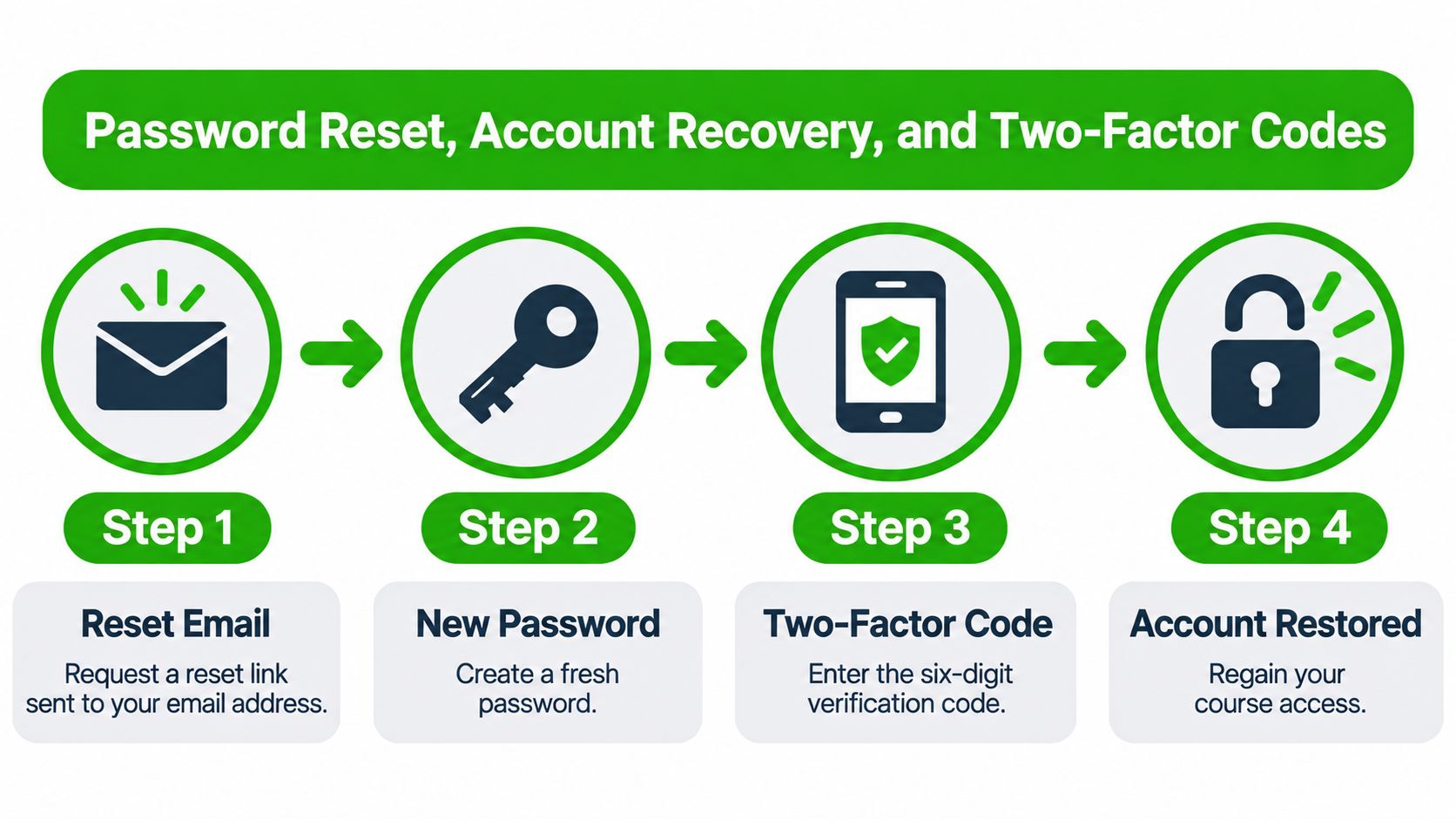
Two-factor authentication protects course access, which is why the FTC recommends two-factor authentication. It also creates a clear failure point, so update recovery methods before class starts and keep any backup option the provider offers.
Support staff may ask you to verify identity. They should never ask you to disclose a one-time verification code to a caller or unsolicited message.
For a broader view of how platforms structure secure recovery and account control, SnapDial unified login UCaaS security gives useful context. The same rule applies here. Protect the account, verify the person, and keep one documented path back into the correct enrollment.
Browser, Camera, and Connection Requirements
Most “login failures” are device failures. Before class, use a desktop or recent tablet with an up-to-date version of Chrome, Edge, Firefox, or Safari. Enable JavaScript and cookies, allow pop-ups for the course domain, and close browser extensions that block video, audio, or new windows.
A live virtual class also needs a working camera and microphone. Test both from the course portal, not only from a video-call app. A headset is usually better than built-in speakers because it reduces echo and makes instructor communication clearer.
Fix the usual device problems
If a lesson won't load, clear the browser cache and sign in again. If video playback fails, update the browser and temporarily disable extensions that interfere with media. A VPN can also trigger a security or location check, so disconnect it during login if the provider's support team advises that it's blocking access.
Mobile data can work when home internet isn't available, but it's less forgiving during a live session. Position yourself where the signal is stable, keep the device charged, and avoid moving between networks. If the course requires documents, quizzes, or camera interaction, a laptop usually gives you more control than a phone.
Run this kitchen-table check before the scheduled class:
- Browser: Updated and supported.
- Permissions: Camera, microphone, cookies, JavaScript, and pop-ups enabled.
- Audio: Headset connected and microphone test completed.
- Connection: Stable Wi-Fi or dependable mobile data.
- Workspace: Enough screen space to read course materials without constant zooming.
- Power: Charger connected or battery fully prepared.
Don't wait until the instructor is speaking to discover that your microphone permission is blocked. Technical preparation protects attendance records as much as it protects convenience.
Fixing the Most Common Login Errors
Error messages become easier when you attach one action to each problem.
The practical fix list
| Error | The action that usually resolves it |
|---|---|
| Expired invitation | Request a fresh invitation from the provider. An old calendar link won't restore an expired session. |
| Name mismatch | Stop before completing more coursework and ask support to correct the profile to match your legal records. |
| Browser not compatible | Switch to an updated Chrome, Edge, Firefox, or Safari browser and enable required permissions. |
| Unsupported mobile device | Move to a laptop or desktop for components that require a larger screen, camera, or specific browser feature. |
| Session full | Contact the provider, wait for an approved opening, or move to another available section. Don't join an unrelated session. |
| Duplicate registration | Stop creating accounts and ask support to identify the active enrollment. |
A name mismatch deserves immediate attention. If staff can't reconcile the registered identity with your driver's license or court paperwork, the system may block certificate generation. Fixing it after completion can take longer because the attendance and assessment records may already be closed.
An expired invitation is different from a bad password. Request a new access message and use the latest link. If the problem is connection quality rather than the portal, use this guide to fixing rural Wi-Fi before blaming the course site.

Take a screenshot that includes the error message, but avoid capturing passwords, verification codes, or unrelated private information. Support can resolve a specific error much faster when the screenshot is paired with your registered email and session details.
Contacting Support and Getting Back on the Road
Use support channels in order of speed. For a live virtual class, start with in-platform chat if it's available. Use email for non-urgent account corrections, and call for a lockout tied to a court deadline or scheduled class.
Have these details ready:
- Identity: Full legal name and date of birth.
- Case details: Citation or case number, when applicable.
- Account: Registered email and mobile number.
- Evidence: Screenshot of the error, with passwords and codes hidden.
- Timing: Session date, time zone, and the deadline you're working against.
Ask support to confirm the correction in writing. When the course is complete, download the certificate immediately and store a backup in a secure cloud folder and on your personal device. Georgia DDS says a Georgia resident may request a reduction of up to 7 license points once every 5 years after successfully completing a certified six-hour Driver Improvement course, and DDS requires the original certificate to be presented in person or mailed to its designated Conyers address. Confirm the current submission process with Georgia DDS.
If you're unsure which agency to contact, use the Georgia DDS contact information and keep your court or insurer instructions beside you. The right login is the one that leads to recognized credit, not merely a completed screen.
Georgia DUI Schools offers Georgia drivers defensive-driving options in self-paced online, live virtual, and traditional classroom formats, along with instructor-led DUI and Risk Reduction programs. Check the course requirement first, then visit Georgia DUI Schools to enroll in the format that matches your DDS, court, or insurance need and start with the correct login.